
Log Someone Out of Your Instagram Account and Keep Them Out
Log Someone Out of Your Instagram Account and Keep Them Out
Log someone out of your Instagram account, then shut the linked account, shared access and passkey doors that let them back in. See each step.
- 1How Do You Log Someone Out of Your Instagram Account?
- Can You Log Out Every Instagram Device at Once?
- 2Does Changing Your Instagram Password Log Everyone Out?
- 3Why Does Someone Keep Getting Back Into Your Instagram?
- How Does Accounts Center Let Another Account Into Your Instagram?
- Can Someone Get Back Into Your Instagram Through Your Email?
- 4Can Someone Still Get Into Your Instagram With Your Login Codes?
- 5Can a Passkey Let Someone Back Into Your Instagram?
- 6What Does Instagram Mean by “You Can’t Make This Change at the Moment”?
- 7Does Instagram Tell Someone When You Log Them Out?
- 8How Do You Log Out of an Instagram Account That Isn’t Yours?
- 9How Do You Give Someone Instagram Access Without Your Password?
- 10What Could Someone See While They Were in Your Instagram?
- 11Quick Takeaways
The Short Answer: Open Accounts Center, tap Password and security, then Where you’re logged in, pick your account and log out every device you don’t own. Then change your password, which Instagram says logs out every other device. If they still get back in, look for their account in your Accounts Center, because since early 2026 accounts linked there can log into each other without your password.
To log someone out of your Instagram account, end their session in Accounts Center, then change your password. Instagram’s own help page says that whenever you change your password, “any devices logged into your Instagram account will automatically be logged out.” For most people, that is enough.
It does not work for everyone. In one r/cybersecurity_help thread from July 2026, an ex-friend kept getting back in after a password change, two-factor authentication and a manual logout of every unknown session.
A session is only one way in. Meta’s help page on logging in across accounts says that “Starting early 2026,” all accounts in the same Accounts Center “will be able to log into each other by default.” That is why your Accounts Center is the first place I look when a password change has not kept someone out.
The steps below are for the app, with the computer route noted where it differs.

How Do You Log Someone Out of Your Instagram Account?
You log someone out of your Instagram account in Accounts Center, under Password and security, then Where you’re logged in, by logging out each device you don’t recognize. This is also how you kick someone off an account you used to share.
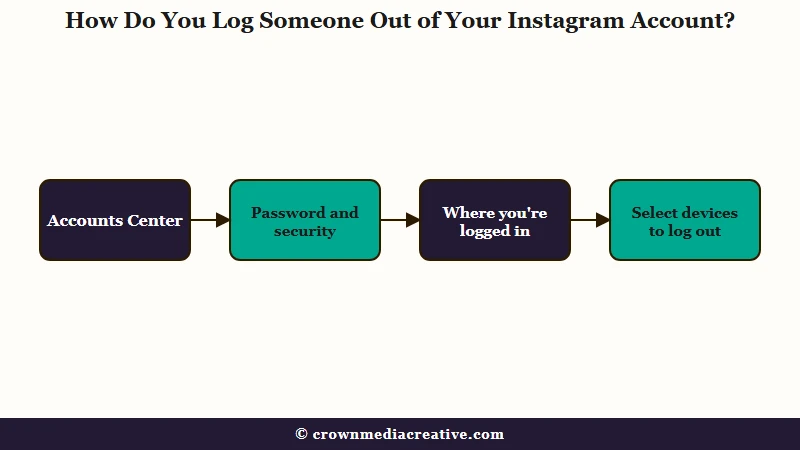
Facebook’s help page for the same panel says each session shows “a date, time, location and device type.” Here is the order I work through on the app:
- Tap your profile picture, then Menu in the top right.
- Tap Accounts Center, then Password and security.
- Tap Where you’re logged in and choose your Instagram account.
- Tap a session you don’t recognize and log it out, or scroll down and tap Select devices to log out.
- Tick every device that isn’t yours, then tap Log out.
On a computer, Instagram’s login activity page puts the same list under More, then Settings, then Password and security. That page also notes that “Not everyone will be able to access this setting in Meta Account or Accounts Center at this time.” Older app versions keep the list under Security, then Login Activity.
Your menus may not match these labels exactly. Meta is turning Accounts Center into a Meta Account “gradually over the next year,” according to its April 2026 announcement, so some screens say Login and security where others say Password and security.
Rule out your own VPN first, since it can make your phone or laptop show up in another city. An unknown login like the Mac in one r/Instagram post can have that innocent explanation. After that check, I end every session I can’t place, even one that might be an old phone of mine, because signing back in on my own phone is a small price.
Can You Log Out Every Instagram Device at Once?
Yes, you can log out every Instagram device at once with the Select all option inside Select devices to log out.
That Facebook page also says you can “click Select all to end all sessions,” and that confirming will “immediately log you out” on every selected device. From there the other person needs your password again, which is why the next step is changing it.
Does Changing Your Instagram Password Log Everyone Out?
Yes, changing your Instagram password logs every other device out, according to two of Instagram’s help pages. Anyone still signed in has to log in again, but a way in that never used your password stays open.
Instagram’s account at risk page says “once you update your password, you’ll be logged out of all other devices,” and that “if anyone is logged into your account, they’ll no longer have access.” It asks for at least six characters, recommends eight or more, and wants a password you use nowhere else.
Change it from the Password and security screen in Accounts Center, on the phone you normally use, since a security change from an unfamiliar device can be blocked. I change the password right after ending the sessions. If Instagram rejects the new password, the invalid credentials fix explains the usual causes.
Each fix in Instagram’s settings ends one kind of access and leaves the rest alone. Here is what five of them do, based on Meta’s own help pages:
| Fix | What it does | Where to find it |
|---|---|---|
| Log out a session | Ends that device’s session right away | Accounts Center, Password and security, Where you’re logged in |
| Change your password | Logs out every other device | Accounts Center, Password and security |
| Turn off a two-factor device | Stops its login codes but does not log it out | Two-factor authentication, your login method, Turn off |
| Get new backup codes | Cancels your old backup codes | Two-factor authentication, Additional methods, Backup codes |
| Remove a passkey | Deletes that passkey for good | Meta Account Settings, Login and security, Passkey |
Why Does Someone Keep Getting Back Into Your Instagram?
Someone keeps getting back into your Instagram when they hold a way in that skips your password. The usual ones are a linked account in your Accounts Center, shared access, a passkey, your email or your phone number, and each needs its own fix.
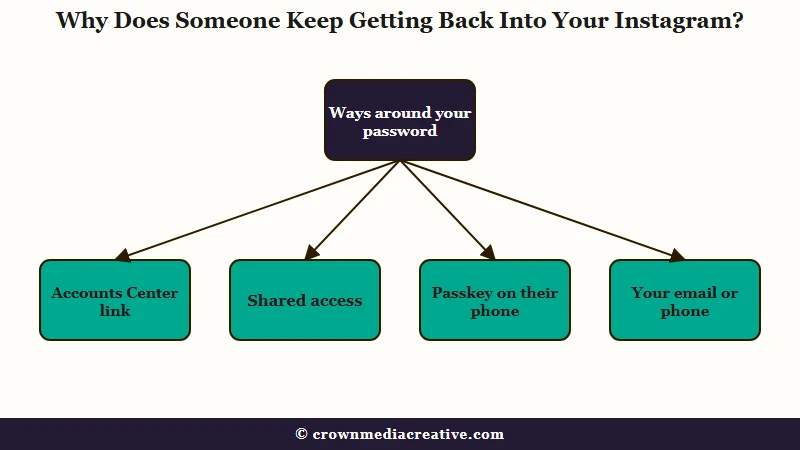
My rule: if they were back inside within a day, check Accounts Center before anything else. The table lists each route, why a new password misses it, and where to close it.
| Way back in | Why a password change misses it | Where to close it |
|---|---|---|
| Their account in your Accounts Center | Linked accounts log into each other without your password | Accounts Center, Accounts, Remove |
| Shared access you once gave them | They act from their own account | Menu, Shared access |
| A passkey on their phone | A passkey stands in for the password | Login and security, Passkey, Remove |
| Your email or phone number | A reset link lets them set a new password | New email password, then your contact info |
| A connected app | It acts on your account without your password | Website permissions, Apps and websites |
| Remote access on your computer | They use your own signed-in browser | Remove the remote-access app |
If they got back in after a password change, redo it in this order:
- Secure your email and the phone number on your account.
- Remove their account from your Accounts Center.
- Revoke shared access and any passkeys you didn’t create.
- End every session in Where you’re logged in.
- Change the password from your usual phone, set up your authenticator app again, then get new backup codes.
The password goes last because a new password only holds once their other ways in are closed.
How Does Accounts Center Let Another Account Into Your Instagram?
Accounts Center lets every account added to it log into the others, and since early 2026 that is the default. Anyone whose Facebook or Instagram sits in the same Accounts Center as yours can switch into your account without your password.
Meta’s page on logging in across accounts opens with the change. “Starting early 2026, the connected experience, Logging in with accounts, will no longer be available,” it says, “and all accounts will be able to log into each other by default.” It adds that “For some Meta accounts, we’ll automatically allow all accounts to log into each other.”
This changed recently. Archived copies of Meta’s help pages from August and September 2025 describe a setting where you picked which accounts could log into each other. The early-2026 wording was live by March 30, 2026.
An account lands in your Accounts Center when someone adds it, and Instagram’s page on adding and removing accounts starts with “Log into the Instagram account you’d like to add.” A partner, a relative or a manager who once had your password could have done it, or you may have added their account yourself while you shared a phone.
Before you remove anything, make sure your own Instagram has a password of its own. The cross-account login page warns that “If you choose to turn off this connected experience,” you “may not be able to log into your accounts until you create a password.” To remove their account:
- Open Menu, then Accounts Center.
- Scroll down and tap Accounts.
- Tap Remove next to the profile that isn’t yours, then tap Remove account.
- Tap Continue, then Yes, remove [name].
Before: your Accounts Center lists your Instagram next to their Facebook or Instagram, so their account can log into yours.
After: it lists only accounts you own, so that route is closed.
Some accounts still show the older setting under Connected experiences, then Logging in with accounts. If yours does, tap their account and untick your Instagram, which is how that page says to stop another account from logging into yours.
Can Someone Get Back Into Your Instagram Through Your Email?
Yes, anyone who can read your email can request an Instagram reset link and set a new password. Secure your email before you change your Instagram password, and do the same for a phone number they can read, since a reset link can go to a phone.
The US Federal Trade Commission’s hacked account guide warns that someone in your email could “get the password reset link from your inbox, change your password, and lock you out of the account.” It also says to check for forwarding rules and “Delete any rules you didn’t set up, so your messages aren’t forwarded to someone else’s address.”
Instagram’s reset page confirms that “A link will be sent to either your email or phone to help reset your password.” So make sure the email address and phone number on your account are yours alone. If Instagram emailed you from [email protected] about an email change you didn’t make, its hacked account page says the “secure my account” link in that message may undo it.
Can Someone Still Get Into Your Instagram With Your Login Codes?
Your login codes alone are not enough to get someone into your Instagram, but they remove the code check if that person learns or resets your new password. Clear out every copy they might hold.
Instagram lets you connect up to five devices to two-factor authentication through an authentication app, according to its multiple devices page. The same page says “Removing a connected device from two-factor authentication does not log it out from your Meta Account.”
To clear their copies, work through this on your own phone:
- Open Accounts Center, tap Password and security, then Two-factor authentication, and pick your account.
- Turn off the authentication app method, then set it up again on your own phone.
- Tap Additional methods, then Backup codes, then Get new codes.
- End their session in Where you’re logged in, since turning off their device does not log it out.
I get new backup codes any time someone else has held my phone. Instagram’s backup code page files that step under “Cancel your current backup codes and get a new set of codes.”
A phone marked with “Trust this device” skips the code on later logins. Instagram’s two-factor page says you can remove trusted devices once two-factor is on.
Can a Passkey Let Someone Back Into Your Instagram?
A passkey can let someone back into your Instagram, because it signs in with a phone’s screen lock instead of a password. Meta’s passkey page doesn’t say a password change removes one, so check your passkey list and remove any you didn’t create.
Meta’s passkey page says you can create up to 5 passkeys per Meta Account. Each one shows “the associated email address or phone number, where the passkey is stored, and the date the passkey was created.”
In Instagram, open your profile, tap Menu, then Meta Account Settings (Accounts Center on some phones), Login and security, and Passkey. Tap Remove next to any you don’t recognize, and note the page’s warning that “Removing a passkey is permanent.” I read the stored-on detail first, since a passkey saved on someone else’s phone gives itself away there.
One r/facebook post from June 2026 shows the risk on a Facebook account. The owner recovered it again and again and kept losing it, until they could “remove the passkey of the hackers device.”
What Does Instagram Mean by “You Can’t Make This Change at the Moment”?
“You can’t make this change at the moment” means Meta has flagged your phone or browser as a device you don’t usually use. It blocks security changes from that device for a while, a lock aimed at strangers that also catches owners on a new phone.
The full error ends with “using a device you don’t usually use,” as quoted in the r/cybersecurity_help thread. One r/facebook post quotes Facebook’s version promising “we’ll allow you to make this change after you have used this device for a while.” Meta does not say how long that takes.
I’d switch to my usual phone, or wait the block out, before reaching for any workaround. Try these in order:
- Make the change from the phone or computer you normally use for Instagram, on your usual Wi-Fi.
- Do every step that still works on the flagged device, then come back to the blocked one later.
- Try the workaround in one reply in that thread: add and verify a new email under Accounts Center, Profile and personal details, Contact info. That reply says “At this point, Instagram will let you log out of all devices/sessions,” and also that it “can’t guarantee this still works.”
- Keep using that device normally and try the change again later.
Does Instagram Tell Someone When You Log Them Out?
No, Instagram’s help pages describe no notice to the device you log out. The other person most likely finds out only when the app asks them to log in again, while you get a warning if they try from a device Instagram doesn’t recognize.
Bitdefender’s guide says the same: “Whoever was using it won’t get a notification from Instagram, but they’ll know soon enough when they’re prompted to log back in.” I assume they will notice the next time they open the app, so I finish every step in one sitting.
Instagram said in a February 2021 post that “If someone logs in to your account from an unknown location or device, we’ll send you a notification to confirm it was you.” Its current login activity page still offers “This Was Me” and “This Wasn’t Me” buttons. If you don’t recognize a recent login, it says, “you can log out of that location or device and let us know that the login wasn’t you.”
How Do You Log Out of an Instagram Account That Isn’t Yours?
To log out of an Instagram account that isn’t yours, log out from that account’s menu, then remove its saved profile from the login screen. That stops the phone offering the account again.
Instagram’s login information page says tapping Log out under Login removes “login information for the Instagram account you’re currently logged into,” so switch to the right account first. That is also how you log out of one account and keep the others signed in. To clear it from the login screen:
- Open the Instagram login screen.
- Tap Options in the top right.
- Tap Remove profiles from this device.
- Tap Remove next to the account.
On a shared phone I remove the profile from the login screen every time I log out. The same page admits that “Not everyone will be able to remove a profile from the login screen at this time.” An Android phone signed into a linked Google account can also keep suggesting the account.
Delete the saved login from that phone’s password manager too, such as iCloud Keychain or Google Password Manager. If your own account is still signed in on a friend’s phone, end that session from Where you’re logged in instead.
One r/instagramAsk post shows how stubborn saved logins get, with old accounts still on the login screen after more than 10 reinstalls. Check the account switcher as well, since Instagram’s multiple accounts page allows up to 10 accounts logged in at one time.
How Do You Give Someone Instagram Access Without Your Password?
You give someone Instagram access without your password through shared access or a scheduler with its own logins. Either way you can remove that person later without touching your password.
Shared access, limited to eligible accounts and not available to teens, lets invited people “post content, like or comment on posts, and more without sharing your password,” per Instagram’s shared access page. The same page says subscribers to Meta One, Meta’s subscription plan, can invite people “based on your plan,” up to 4, 8 or 30 depending on the tier.
Each invite has 7 days to be accepted. Instagram’s shared access overview says invited people “can’t disable your account, provide account access to others or edit account information like your username, password and contact info.”
The overview also says “If you block someone you’ve shared access to your account with, they’ll automatically lose access to your account.” That makes blocking a fast exit if things go wrong.
My take is that a password shared with a manager is a password you no longer control. A scheduler such as Vista Social suits a team that needs separate logins for several people, or an account that can’t use shared access, and your password never changes hands.
When a manager leaves, open Menu, then under Your app and media tap Website permissions, then Apps and websites, and remove their tools. Instagram’s apps page says apps that manage business and creator accounts are not expired “after 90 days of inactivity,” so their access lasts until you remove it.
What Could Someone See While They Were in Your Instagram?
Someone logged into your Instagram could see everything you can, including your DMs, saved posts, searches and watch history. Check what they touched, then clean up anything you don’t want left behind.
Your watch history, under Your Activity, holds the Reels watched on the account in the last 30 days, so anything they watched recently shows up there. You can also clear your search history if they searched names you don’t want suggested back to you.
The watch history is the first thing I open, since it shows what they watched while they were in. Then check these for anything you didn’t do, and delete or report anything posted in your name:
- Likes and comments, under Your Activity
- Accounts followed from your profile
- Messages sent from your inbox
If the same person also had your TikTok, a hacked TikTok account needs different steps.
Quick Takeaways
- End every session under Accounts Center, Password and security, Where you’re logged in, then change your password from the phone you normally use. That is enough for most people.
- If they get back in anyway, secure your email and phone number first, because a reset link in someone else’s hands undoes everything else.
- Then find their account in your Accounts Center and remove it, since accounts linked there can log into each other by default from early 2026.
- Revoke shared access, remove passkeys you didn’t create and set your authenticator app up again, then end every session, change the password and tap Get new codes.
- A “You can’t make this change at the moment” block means you’re on an unfamiliar device, so make the change from your usual phone.

