
When Keep Instagram Open to Finish Posting Won’t Go Away
When Keep Instagram Open to Finish Posting Won’t Go Away
Stuck on Keep Instagram open to finish posting? See why the upload stalls, how to cancel it without losing your draft, and what fixes it.
- 1What Does Keep Instagram Open to Finish Posting Mean?
- How Long Should an Instagram Upload Take?
- 2Why Is Keep Instagram Open to Finish Posting Stuck?
- What Does It Mean When the Bar Jumps to 90 Percent and Stops?
- 3How Do You Cancel a Stuck Instagram Upload Without Losing It?
- 4How Do You Fix a Stuck Instagram Upload on an iPhone?
- 5How Do You Fix a Stuck Instagram Upload on Android?
- 6Why Won’t My Instagram Reel Finish Posting?
- 7Is It Your Account or Is Instagram Down?
- 8Can You Post From a Computer When the App Keeps Failing?
- 9Quick Takeaways
The Short Answer: “Keep Instagram open to finish posting” means your post is still uploading, and Instagram needs the app kept open until it finishes. If the bar has not moved for five minutes, turn on Airplane Mode until the post fails, then retry on another network with Low Power Mode or Battery Saver off. If a plain photo posts but your Reel will not, look at the file or your account before your phone.
The “Keep Instagram open to finish posting” line above your feed normally clears within a few minutes. When the bar freezes and the line stays put, the upload has stalled somewhere between your phone and Instagram.
One battery setting can cause that stall by itself. Apple’s page on Low Power Mode says it “Sets Auto-Lock to 30 seconds” and “Turns off Background App Refresh.” A Reel that needs a few minutes to send can be cut off by that 30-second lock halfway through, which is the exact situation the message warns about.
The first thing I check is whether other people are stuck at the same moment. An outage, a heavy file and a limited account all look identical on that progress bar. Below is how to tell which one you have, how to cancel the stuck upload without losing your draft, and the settings that keep the next one moving on iPhone and Android.
What Does Keep Instagram Open to Finish Posting Mean?
Keep Instagram open to finish posting means the upload is still running and Instagram wants the app kept open until it ends. Switching apps or letting the screen lock can pause it, and a bar that stops moving for several minutes has stalled.
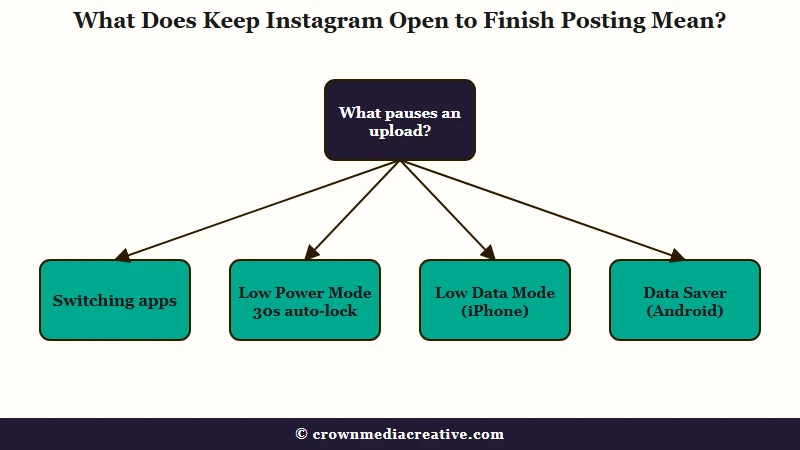
The bar at the top of your feed tracks the upload. Leave the app mid-upload, and your phone’s battery and data rules decide whether that transfer keeps going.
iPhones have a second setting that works the same way on the network side. Apple says Low Data Mode “Stops using network data when you’re not actively using those apps,” so an upload sitting in a background app can go idle until you come back to it.
Android has its own version. Google’s Data Saver documentation says that with Data Saver on and a metered network, “the system blocks background data usage and signals apps to use less data in the foreground wherever possible.”
I read the message as an instruction to follow: keep the screen on and stay in Instagram until the bar finishes.
How Long Should an Instagram Upload Take?
A photo or a short Reel should clear the bar within a few minutes on a working connection, while long or high-quality Reels take longer. Instagram’s Reels specs page warns that uploading at the highest quality can take longer.
Length matters more than it used to. Instagram’s reel recording page now says you can record and edit videos “up to 20 minutes,” and it notes that reels over 3 minutes “won’t be recommended to new audiences.”
My cutoff is five minutes without the bar moving on a connection that loads other apps fine. Past that point I stop waiting and work through the checks below.
Why Is Keep Instagram Open to Finish Posting Stuck?
The message usually stays stuck for one of five reasons: the app went to the background, the connection dropped, the file is too heavy, your account is limited, or Instagram is having problems. Each one leaves a different clue, and the clue tells you which fix to try first.
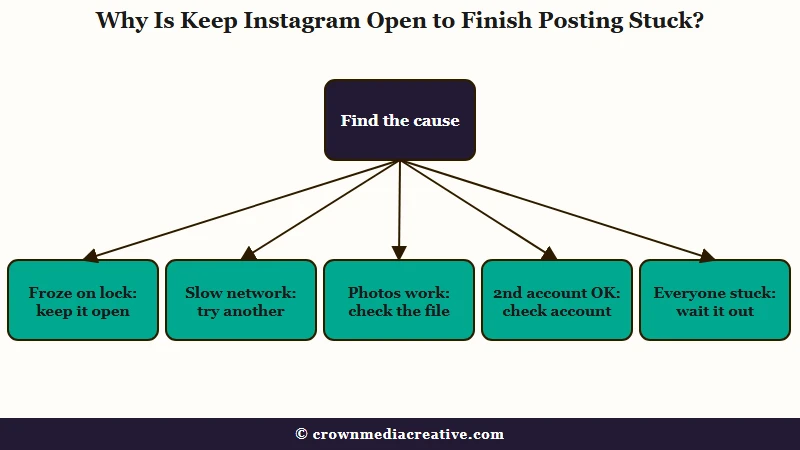
This is the triage I run before touching any settings, matched to what you can see on your own phone:
| What you see | Likely cause | First fix |
|---|---|---|
| The bar froze after you switched apps or the screen locked | Instagram went to the background mid-upload | Reopen Instagram, keep it on screen, turn off Low Power Mode |
| The bar crawls or stops on mobile data, public Wi-Fi or a VPN | The connection | Switch networks and turn the VPN off |
| A plain photo posts, but one Reel or carousel never does | The file or the edits on it | Re-export the video lighter, drop the music, post fewer items |
| A second account posts normally from the same phone | Your main account | Check Account Status before you retry |
| Friends or Downdetector, an outage tracker, show the same failure | Instagram itself | Wait it out instead of reposting |
Restarting, reinstalling and reconnecting mostly help with the first two rows. When the file, the account or Instagram itself is the problem, those steps burn time and can cost you drafts.
What Does It Mean When the Bar Jumps to 90 Percent and Stops?
A bar that jumps to 70 or 90 percent and stalls the same way on every network you try points away from your connection. The file or the account is the likelier cause.
In an April 2026 thread, a post “shoots up to 70-90% immediately but never finishes uploading,” on every try for a week. Deleting the app, restarting the phone, logging out, switching between Wi-Fi and data, and updating everything changed nothing.
An August 2026 thread shows two quick tests worth running. Posts on a main account sat at 83 percent for four days. A test post of one to three photos with no song went through, and a second account posted normally.
Those two tests are the fastest way I know to narrow down the cause. Try a single photo with no music, then try the stuck post from another account, before you change any settings.
How Do You Cancel a Stuck Instagram Upload Without Losing It?
Turn on Airplane Mode until Instagram marks the post as failed, then retry or discard it, or use Force stop on Android. Check your camera roll for the video first, because a clip recorded inside Instagram may exist only in the stuck post.
Instagram does not give you a cancel button on a running upload, so you have to make it fail. Cutting the connection does that without deleting anything stored on the phone.
Here is the order I follow so nothing gets lost:
- Open your camera roll and confirm the clip you shot is there.
- Turn on Airplane Mode from Control Center or your quick settings.
- Stay in Instagram until the post shows as failed. If it never does, force-close the app and reopen it.
- Use the options on the failed post to discard it, or leave it there to retry later.
- Turn Airplane Mode off and retry on a different network.
On Android there is a cleaner exit. Go to Settings, then Apps, then Instagram, and tap Force stop. In a November 2025 thread about a Reel stuck since the night before, Force stop ended the background retries, and the next launch tried the upload fresh.
Each cancel method treats your drafts differently:
| Method | What happens to the stuck post | What happens to your drafts |
|---|---|---|
| Airplane Mode | Fails, then you can retry or discard it | Untouched, nothing on the phone is deleted |
| Force stop (Android) | The background retries stop | Untouched |
| Clear storage (Android) | Gone, with everything else the app stored | Lost, because Instagram stores drafts on the phone |
| Delete and reinstall | Gone, with the app | Lost, per Instagram’s own drafts page |
Reinstalling is the most overused fix for this message, in my view, and I keep it for last. It did nothing in the April thread or the August thread, where it was tried alongside every other fix.
Instagram’s drafts page says “If you uninstall the app, your drafts will be lost,” and it warns that a downloaded reel “won’t save any music you added from the Instagram music library.”
For Stories, the Save story to gallery switch can keep a copy of each Story on your phone as you share it. That makes a failed upload far less costly.
How Do You Fix a Stuck Instagram Upload on an iPhone?
On an iPhone, turn off Low Power Mode and Low Data Mode, keep Instagram on screen until the bar finishes, and retry on a different network.
Work through these on an iPhone, cheapest step first:
- Turn off Low Power Mode in Settings, then Battery, or from Control Center. Apple notes it also switches itself off once you charge to 80% or higher.
- Turn off Low Data Mode. For Wi-Fi it sits under Settings, Wi-Fi and the Info button next to your network, and for mobile data under Settings, Cellular, Cellular Data Options, which some regions call Mobile Data.
- Set a longer Auto-Lock in Settings, Display & Brightness, Auto-Lock, or tap the screen now and then while the bar moves.
- Turn off any VPN and switch between Wi-Fi and cellular.
- Force-close Instagram by swiping it away in the app switcher, then reopen it and retry.
- If you want to reinstall, offload rather than delete: Settings, General, iPhone Storage, Instagram, Offload App.
Apple’s storage page explains the difference. Offloading “frees up storage used by the app, but keeps its documents and data,” while deleting “removes the app and its related data.” I only reach for either after steps 1 to 5 fail.
How Do You Fix a Stuck Instagram Upload on Android?
On Android, force stop Instagram to end the stuck upload, then let it use data and battery without limits before you retry. If you clear anything, clear the cache and never the storage, because Clear storage wipes the drafts Instagram keeps on your phone.
Android needs a slightly different order:
- Go to Settings, Apps, Instagram and tap Force stop.
- If Data Saver is on, allow Instagram unrestricted data in the app’s data settings. Google’s documentation says people “can allow specific apps to use background metered data usage even when Data Saver is turned on.”
- Turn off Battery Saver and set Instagram’s battery use to Unrestricted while you post. The labels vary by phone maker.
- Reopen Instagram on a different network and retry.
- If it still sticks, save your video first, then clear the cache under Settings, Apps, Instagram, Storage, Clear cache.
I treat clearing the cache as a last resort, partly because the Clear storage button sits right beside it. It also cannot fix a fault on Instagram’s side: during the November 2025 outage covered below, Story uploads stayed stuck even after a forced close and a cleared cache.
Why Won’t My Instagram Reel Finish Posting?
A Reel that fails while photos post fine is usually too heavy or too edited. Re-export it at 1080 by 1920 and 30 frames per second, add music last, and turn Upload at highest quality off for the retry.
Instagram’s Reels specs page asks for an aspect ratio between 1.91:1 and 9:16, at least 30 frames per second and at least 720 pixels. The same page says you can “always upload reel at the highest quality” and adds that it “may take longer to upload.” That is the wrong direction while one is stuck.
The switch sits in your profile menu, under Your app and media, then Media quality. I turn it off for the retry, get the post up, and turn it back on afterwards.
HDR video from an iPhone is another heavy input. Apple’s HDR video page says certain iPhone models “can record video in Dolby Vision HDR,” and our HDR guide covers turning it off for new clips and making standard copies of old ones.
Here is what a lighter retry looks like in practice:
Before: a 3-minute 40-second 4K clip at 60 frames per second in HDR, edited inside Instagram with library music and five text layers.
After: the same clip trimmed under 3 minutes, exported at 1080 by 1920 and 30 frames per second in standard range, with the music added in Instagram as the last step.
If the post is a carousel, cut it to a few items and drop the song for a test post. When that goes through, add items back a few at a time until you find the one that breaks it.
Is It Your Account or Is Instagram Down?
If a second account can publish the post that keeps failing, your main account is the likely problem. Many people failing at the same moment points to Instagram instead, and in either case reposting the same file every few minutes rarely helps.
Account limits rarely announce themselves on the upload bar. Open Account Status from your profile menu to see whether Instagram has limited any features, and our restriction guide explains why those limits can come back after they lift.
Outages look different, because many accounts fail together. On November 6, 2025, an r/Instagram thread shows Reels and Stories hanging on this exact message for one poster after another. A social media agency in the thread had its whole office stuck, and scheduling was down too.
Instagram announced 3 billion monthly users in September 2025, so when it breaks, the reports pile up fast. Check Downdetector’s Instagram page or search “Instagram down” on X or Threads, and a spike in the last hour settles it.
If names in your feed turn into placeholders like (null) at the same time, the glitch is on Instagram’s side.
Waiting is the right call on an outage day, and it is the only fix I trust then. I give it a few hours and stop reposting the same file in the meantime.
Can You Post From a Computer When the App Keeps Failing?
Yes, on instagram.com you click Create, then Post, then Select from computer, and the upload runs from your browser instead of your phone. It also tells you fast whether the phone or the account is at fault.
Instagram’s reel recording page lays out the computer path: Create, Post, Select from computer, then Next, a caption, and Share in the top right. If the upload works from a laptop, your phone settings were the problem, and if it fails there too, look at the file or the account.
If you post often from a Business or Creator account, a scheduler moves the upload off your phone entirely. Meta’s free Business Suite lets you “Schedule, publish and manage posts, stories, reels and more” for a connected Instagram account, and paid tools such as Vista Social do the same.
Tools that publish through Instagram’s API keep the file on their own server. Meta’s developer documentation says Instagram fetches the video from a URL that “must be on a public server,” so your phone never runs the upload.
I keep that route for people who post daily, and it has caps of its own: the same documentation lists “15 mins maximum” and “300MB maximum” for Reels.
Quick Takeaways
- “Keep Instagram open to finish posting” means the upload needs Instagram kept open, and Low Power Mode’s 30-second Auto-Lock can interrupt it.
- Five minutes with no movement means stuck, so use Airplane Mode to make it fail or Force stop on Android to end it, then retry on another network.
- Instagram keeps drafts only on your phone and deletes them on uninstall, so save the video before reinstalling or clearing storage.
- If a plain photo posts but the Reel does not, re-export it lighter with Upload at highest quality off, and if a second account posts it, check Account Status.
- Still stuck, and Downdetector shows no outage? Post the same file from instagram.com on a computer.

