
Instagram Camera Black Screen and the Fix for Each Cause
Instagram Camera Black Screen and the Fix for Each Cause
Your phone's own Camera app tells you whether an Instagram camera black screen is phone-wide or Instagram's fault. The Live, Reels, Story and messages black screens are covered
- 1Which Instagram Black Screen Do You Have
- 2Why Is My Instagram Camera Showing a Black Screen
- 3Why Is My Instagram Live a Black Screen
- 4Why Do Reels Play Sound With No Picture
- 5Why Does My Story Go Black When I Share or View It
- 6Why Do My Instagram Messages Show a Black Screen
- 7What Fixes an Instagram Black Screen and What Wastes Your Time
- 8Frequently Asked Questions
- Is my phone broken if Instagram shows a black screen?
- Why does Instagram play sound with no video on Reels?
- Does clearing the cache fix an Instagram black screen?
- Why do I get an Instagram camera black screen when my normal camera works?
- Will the Instagram black screen fix itself?
- What can I do if nothing works?
- 9Quick Takeaways
The Short Answer: For an Instagram camera black screen, open your phone’s own Camera app first. If it is black too, the cause is phone-wide, such as Android’s Camera access switch, heat or a camera fault; if it works, check Instagram’s camera permission, then close Instagram and relaunch it. Reels, Stories and messages go black for other reasons, and most of those sit on Instagram’s side.
An Instagram black screen arrives with no error message and no explanation. The camera opens to a dark rectangle, or a Reel plays audio over nothing, or a Story you just shared sits there as a black square that never uploads.
Search for a fix and you get the same short list everywhere: check camera permissions, clear the app cache, update the app, restart the phone. None of it catches the Android case where Instagram’s permission screen looks fine and the camera is still black, because a separate switch has turned the camera off for every app.
Telling the versions apart is the step almost nobody covers. That is the first thing I check now, because the usual steps help most with the camera case, and knowing that saves you an hour of pointless menu-diving.
Which Instagram Black Screen Do You Have
An Instagram black screen splits by where it appears: the in-app camera, a Live broadcast, the Reels or feed player, Story sharing and playback, and messages. Each has its own causes, and the standard checklist helps most with the camera case.
I sort these by which surface goes dark. Phone model is the wrong axis, because the fault does not track hardware.
Two signals tell you almost immediately whether the problem is yours or Instagram’s. The first is timing: if the black screen started the same day for a lot of people at once, no setting on your phone caused it. The second is cross-device behaviour, and it is the stronger of the two.
If you have a second phone, log in there and see whether the black screen follows your account. If it does, a device-wide fault, a permissions mistake and a corrupted install become very unlikely, because none of those travel with the account.
| Where it goes black | Most likely cause | Does the standard checklist fix it |
|---|---|---|
| In-app camera, preview is dark | Instagram’s camera permission off, a phone-wide camera block, or Instagram losing the camera to another app | Often yes, except the phone-wide camera switch |
| Live broadcast, video is dark | The host’s camera cut off, for example by leaving Instagram mid-broadcast, or streaming software sending a black feed | Sometimes, for a broadcast from a phone |
| Reels or feed, audio plays with no picture | Video surface not reattached during scrolling | No |
| Story sharing or Story playback | App or server-side bug, sometimes an OS conflict | Rarely |
| DMs and messages | App build or theme rendering bug | Sometimes |
Why Is My Instagram Camera Showing a Black Screen
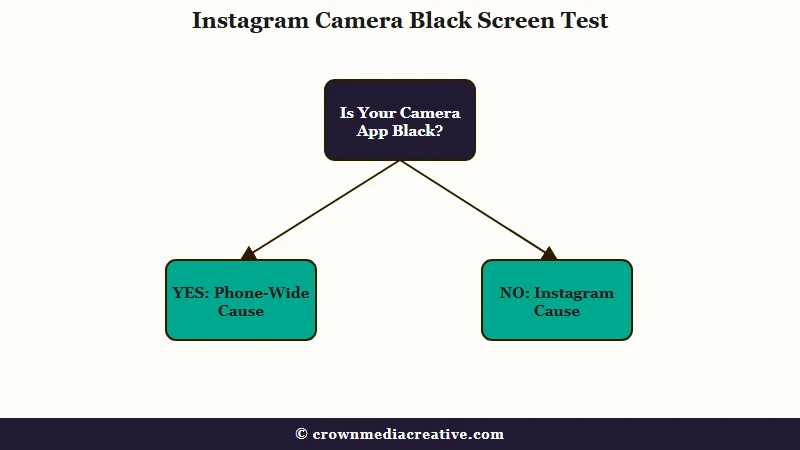
Open your phone’s own Camera app first, because it splits the causes in two. If every camera app is black, the cause is phone-wide. If only Instagram’s camera is black, the fault sits between Instagram and the camera: its permission, a camera it lost to another app, or a faulty Instagram build.
The phone-wide case the usual advice misses sits on Android 12 and later, which added a Camera access switch to Quick Settings on supported phones. It turns the camera off for every app at once, and Android’s developer documentation says an app then “receives a blank camera feed”.
That switch sits outside Instagram’s own permission screen, so checking Instagram’s permissions finds nothing wrong. Android says it reminds you the switch is off when an app that needs the camera opens, and if you tapped that reminder away, pull down Quick Settings and turn Camera access back on.
On an iPhone, heat can black out the camera for every app. Apple’s camera framework lists “system pressure, such as thermal duress” as a reason to interrupt a camera session, so a phone that is hot from charging, gaming or a long video can stop the camera until it cools. If it is not hot, Apple’s steps for a black camera screen are to take off any case, film or accessory that covers the lens or puts a magnet near it, restart the phone and update iOS, and if it is still black after that, it might need service.
If your own Camera app works, check Instagram’s camera permission next, since it is the one step the usual advice gets right. On an iPhone it is under Settings, Privacy & Security, Camera, and on Android under Settings, Apps, Instagram, Permissions.
Guides that blame an app running in the background have it backwards on a phone. Android has blocked background apps from the camera since Android 9, and Apple’s documentation states, “Camera usage is prohibited while in the background.”
Another app can still take the camera from Instagram while Instagram is open. A video call, a scanner opened on top of it or the other half of a split screen can take it over, and Android’s multi-window guidance says “When the topmost resumed app wants to use the camera, it can open it, and your app will lose access.” An app that loses the camera this way has to reopen it when you come back, and when that handoff fails, the preview has nothing to show.
Apple’s camera framework covers the same thing with an interruption for a camera “temporarily being made unavailable (for example, when used by another capture session)”. On an iPad it can also interrupt an app’s camera in Slide Over, Split View or Picture in Picture, so run Instagram full screen.
Your phone shows you which app has the camera. On Android 12 and later a camera icon appears in the status bar while an app uses it, and tapping it in Quick Settings lists the apps using the camera. On an iPhone a green dot appears, and a message at the top of Control Center tells you when an app has recently used the camera.
Instagram’s own call troubleshooting page says to “close any open programs that may already be using your camera or microphone”. On a phone, close Instagram too, then launch it cold from the home screen, so it opens the camera fresh as the app in front, which Android documents as getting “the highest priority when accessing the camera”.
Before: switch back into Instagram straight from a video call or a scanner app you just used
After: close those apps and Instagram itself from the recent-apps switcher, then launch Instagram cold from the home screen
Sometimes the camera fault is Instagram’s alone, and then it hits a lot of people on the same day. Starting on 11 February 2026, users in an r/Instagram thread reported the in-app camera showing only black, Stories failing to post and chosen photos uploading blurred. Clearing the cache and data did not help, the original poster switched to Instagram Lite, which worked, and two others said it fixed itself by 13 and 14 February.
In a second thread from 13 February, resetting the camera permission brought the preview back, but the photo turned black again once taken, and a Galaxy S25 Ultra owner said clearing data and reinstalling changed nothing.
Android’s CameraX preview documentation shows how an app’s own code can leave a dead preview with nothing for you to fix. It lists three ways of wiring a custom surface into its standard preview view and warns that if any of them happens, “the Preview stops streaming frames to the PreviewView”.
Why Is My Instagram Live a Black Screen
A black Instagram Live has different causes depending on how the host is broadcasting. From a phone, Live runs on Instagram’s in-app camera, so the camera causes apply: a phone-wide problem, Instagram’s camera permission, or another app taking the camera. From a computer, Instagram airs whatever the host’s streaming software sends.
Leaving Instagram in the middle of a Live cuts off the camera it is broadcasting from. Both platforms block background apps from the camera: Apple’s documentation says “Camera usage is prohibited while in the background”, and Android has blocked it since Android 9. Stay in Instagram until you end the broadcast.
From a computer, Instagram’s Live Producer lets a host go live “using streaming software (OBS, Streamlabs, etc.) through a stream key” taken from instagram.com, and Instagram’s page for it still says it is limited access. A black preview in that software means a black Live, and the fix is in its video source.
The same page offers a “Practice” audience that “will not broadcast to anyone”, which is the safe way to check the picture before going public. It recommends 720×1280 video at 30 fps and a bitrate of 2,250 to 6,000 Kbps, and it warns that the stream key “will refresh each time you use Live Producer”, so a key saved from an earlier session will not work.
If you are watching and one Live is black while Reels and other Lives play normally, the problem is most likely on that host’s end. If every Live and Reel is black for you, the fault is in your copy of the app or on Instagram’s side, and if you joined the Instagram beta, leaving it is the first thing to try.
Why Do Reels Play Sound With No Picture
Audio without video means the player is running correctly and the video surface it should be drawing onto was never reattached. This happens as items scroll in and out of view, and no amount of cache clearing touches it.
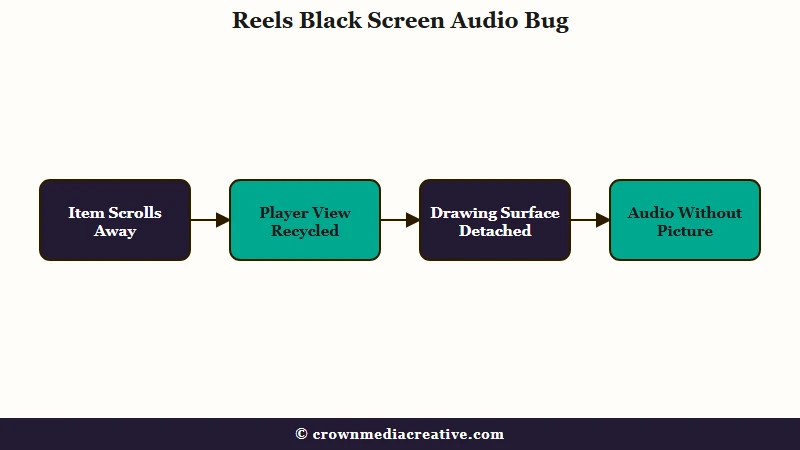
Reels is where I stopped blaming the phone. A scrolling video feed recycles a small number of player views as you swipe, and each one has to be handed back the correct drawing surface every time it comes back into view. Miss that handoff and the sound keeps playing over a black rectangle.
The same symptom shows up in a documented defect in Android’s own media library. A tracked issue there describes a player inside a nested scrolling list showing a blank screen while audio plays normally, because recycled views failed to hand the surface back to the player, and it was fixed on 23 June 2025 in a change titled “Ensure PlayerSurface views can be reused in reusable containers”. Instagram’s player code is not public, so nobody outside Meta can confirm it is the same bug.
A second cause is a hard limit, and no patch removes it. Phone chips carry only a small pool of hardware video decoders, so a feed that spins up one player per item exhausts them and later items get nothing to draw with.
A 60Hz screen leaves roughly 16.7 milliseconds to lay out and draw each frame, which is why feed rendering gets engineered this hard in the first place. Meta’s write-up on its Android feed video work says the video component it built with its Litho framework improved scrolling performance by up to 20 percent across the Facebook for Android app, and reduced total out-of-memory crashes by 2.5 percent.
Three things help on your side while the app is misbehaving:
- Swipe up one Reel and back down. Forcing the item to rebind often repaints it correctly.
- Open your DMs and immediately back out. The layout transition forces the feed to redraw, which clears the half-black and fully-black variants on several Android models.
- Leave the Instagram beta channel if you joined it in the Play Store, then install the stable build. Reels black screens cluster heavily on beta versions, and reinstalling without leaving the programme just pulls the same broken build again.
If your Reels are stuttering instead of going black, that is a different problem with a different fix, and the same is true of playback slowdowns on other apps. Playback controls behave differently again, which is worth knowing if you find pausing a Reel harder than it should be.
Why Does My Story Go Black When I Share or View It
Story black screens are the least fixable of the five. Clearing cache, clearing app data, reinstalling, rolling back the system, and using a second account all leave this one in place, because the fault sits in the app build itself.
Sharing a post to your Story loads, turns black, and never reaches the servers. Viewing someone’s Story shows a black frame where the media should be. Both survive the entire standard checklist.
This one sits on Instagram’s end. It appears across Samsung, Xiaomi and OnePlus hardware at the same time, and in the documented cases it ends when the next app update ships, with no amount of clearing or reinstalling bringing that forward.
One pairing swallows a lot of troubleshooting time. On the OnePlus Nord CE6 running OxygenOS 16.0.5, the Story preview turns black as soon as the app is minimised and reopened, and cache clears, data clears, reinstalls, stable rollbacks, app cloning and a different account all failed to shift it.
This is the case I would not spend an evening on. Two workarounds are worth ten seconds each, and after that, wait for the update.
On Android, install Instagram Lite and share from there, which skips the main app’s rendering path entirely. Or open the site in a mobile browser, which handles Stories well enough to get a post out. Both are ways around the bug and neither repairs it.
Stories have other failure modes that look similar and are not, including saving Stories to camera roll, comments and Stories not showing, and video Stories that upload dark in HDR.
Why Do My Instagram Messages Show a Black Screen
A black screen in Instagram messages is usually a redraw failure. Your messages are still on the server and the app has failed to paint the thread, so forcing the interface to rebuild is what brings them back.
This is the case people misread most often, because a black inbox looks exactly like deleted messages. Open the same account in a browser and every thread is sitting there untouched.
Other parts of the interface can break at the same moment. On some builds the navigation bar or the status bar border turns black while the rest of the app stays in light mode, which is the same rendering failure surfacing somewhere you can see it.
Switching your device’s system theme between light and dark is the first thing to try here. The switch forces the app to recreate and redraw its entire interface, and it works in either direction. A chat that changes colour instead of going black is a different problem, and a purple Instagram chat comes down to one of four reasons.
What Fixes an Instagram Black Screen and What Wastes Your Time
The highest-yield fixes, in order, are leaving the Instagram beta channel, checking the camera switch and relaunching Instagram cold, flipping the system theme to force a redraw, switching to Instagram Lite or the browser, and rolling back Android System WebView. Skip the factory reset.
Here is the order I work through, fastest and highest-yield first:
- Check whether you are on the Instagram beta in the Play Store. If you are, leave the programme, uninstall, then install the stable build.
- For a black camera, open your phone’s own Camera app first. If it is black too on Android 12 or later, check that Camera access is on in Quick Settings. If it works, force close Instagram and anything that recently used the camera, then open Instagram cold.
- Flip your system theme from light to dark or dark to light, then reopen the app. This costs five seconds and fixes the DM and interface cases.
- Switch to Instagram Lite on Android, or the mobile site, to get done whatever you were trying to do.
- On Android, uninstall updates to Android System WebView and let it return to its factory version.
- Clear the cache. It sits last here for a reason, and avoid clearing data or storage, since that logs you out.
The dark mode advice you see everywhere looks contradictory because the guides describe a destination instead of an action. One widely-read troubleshooting page tells you dark mode can glitch into a black screen and should be turned off. Another page on the same site tells you switching dark mode on is the temporary fix.
Both are describing the same thing badly. What helps is the switch itself in either direction, because changing the system theme forces the app to rebuild and repaint its interface, so treat it as a redraw trigger for black DMs and interface glitches rather than a cure for a dead camera or a stuck Story upload.
The step I steer people away from hardest is a factory reset. It has been run against this exact class of Instagram rendering fault and changed nothing, which is a heavy price for no result.
Frequently Asked Questions
Is my phone broken if Instagram shows a black screen?
Almost never. If other apps, including your normal camera, keep working, the fault is in Instagram’s app or servers, and a black screen that follows your account onto a second phone is not a hardware problem. If every camera app is black on Android 12 or later, check that Camera access is on in Quick Settings before blaming the hardware.
Why does Instagram play sound with no video on Reels?
The player is working and the surface it draws onto was not reattached when the item scrolled back into view. Android’s own media library had a defect with the same symptom until a fix in June 2025. Swiping away and back usually repaints it.
Does clearing the cache fix an Instagram black screen?
Sometimes, and less often than its reputation suggests. It helps when temporary data is corrupted and does nothing for beta build faults, Story upload bugs, or scrolling surface failures. Clear the cache, and leave the app data alone, since clearing that logs you out.
Why do I get an Instagram camera black screen when my normal camera works?
The fault sits between Instagram and the camera, so check Instagram’s camera permission first. If that is on, force close Instagram and any call or scanner app you just used, then relaunch Instagram, because another app can take the camera while Instagram is open and Instagram may not get it back. If many people report the same thing on the same day, the fault is Instagram’s, and on Android, Instagram Lite is the workaround.
Will the Instagram black screen fix itself?
Often yes, within a few days. Where the cause is an app build or a server-side change, it clears when the next update ships or when the change is rolled back, with nothing required from you. In the February 2026 camera wave, some users reported it clearing on its own within two or three days.
What can I do if nothing works?
Use Instagram Lite on Android, or the mobile site, to do whatever you were trying to do. Both bypass the main app’s rendering path, and neither requires you to keep troubleshooting a bug you cannot reach.
Quick Takeaways
- Reels, Story and message black screens are faults in Instagram’s app or servers far more often than faults in your phone.
- For an Instagram camera black screen, open your phone’s own Camera app first: if it is black too the cause is phone-wide, and on Android 12 or later the Camera access switch in Quick Settings is the first thing to check.
- Timing and cross-device behaviour are the two fastest tells: same-day onset across many people, or a black screen that follows your account onto a second phone, both point away from your settings.
- Audio playing over a black Reel matches a documented Android media library defect fixed in June 2025, and cache clearing does nothing for it.
- If you are on the Instagram beta channel, leaving it and installing the stable build is the single highest-yield step.
- The dark mode tip works as a redraw trigger for black DMs and interface glitches, and the direction you switch it does not matter.
- Skip the factory reset, which has been run against this exact fault and changed nothing.

