
Hide Messages on Instagram With Lock Chat and Find Them Again
Hide Messages on Instagram With Lock Chat and Find Them Again
Instagram has a real Lock and hide chat switch. See how to hide messages on Instagram, find locked chats again and what Restrict leaves open.
The Short Answer: Open the chat, tap the chat name at the top, tap Privacy & safety, then turn on Lock and hide chat and confirm with your face, fingerprint or passcode. The chat moves to a hidden folder in your inbox. To see it again, swipe down from the top of your inbox, tap Locked chats and unlock it the same way.
To hide messages on Instagram behind your phone’s own screen lock, use Lock and hide chat, the app’s built-in switch for that job. Instagram’s help page says a locked chat will “move to a folder only you can see in your inbox” and that “message content will be hidden from notifications and search.”
That switch is easy to miss, because a lot of the advice online skips it. On October 10, 2026, Google’s AI answer for “how to hide messages on Instagram” offered Restrict, Vanish Mode and a General-tab trick for business and creator accounts. It never named the lock, even while citing Instagram’s own Lock a chat page.
The lock has been around for a while. Jonah Manzano, who covers new Instagram features, posted about it on Threads in July 2024. Yet a Reddit reply in February 2026 still told someone that Instagram has no built-in lock for individual DMs.
When a chat needs to stay out of sight on a shared or borrowed phone, the lock is the first thing I point people to. Restrict, mute and Vanish Mode each leave something in view, and one of them hands the whole conversation to anyone who picks up your phone.

How Do You Hide Messages on Instagram?
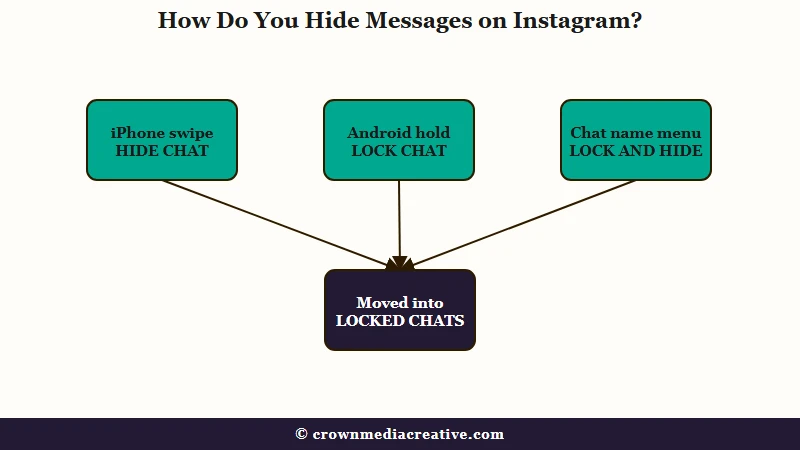
You hide messages on Instagram with Lock and hide chat, a switch in each chat’s Privacy & safety menu. Turning it on takes your phone’s face, fingerprint or passcode, and the chat then moves to a hidden Locked chats folder.
Your phone needs a screen lock before any of this works. Instagram requires device authentication for the feature, so set up a passcode, face or fingerprint unlock in your phone’s settings first.
Then lock the chat from inside it:
- Tap Messages at the bottom of the app.
- Open the conversation you want to hide.
- Tap the chat name at the top.
- Tap Privacy & safety.
- Turn on Lock and hide chat, then confirm with your face, fingerprint or passcode.
There is a shortcut from the inbox, and its label depends on your phone. On iPhone, swipe left on the conversation and tap Hide chat. On Android, tap and hold the conversation and tap Lock chat.
Both labels turn on the same lock. I prefer the inbox shortcut, because it skips the settings menu.
Instagram documents the lock for its phone app only and gives no steps for a computer browser, so lock chats from your phone.
If Lock and hide chat isn’t in the menu, update Instagram and check that your phone has a screen lock. If it’s still missing, the feature may not have reached your account yet, and Instagram’s report a problem page shows how to flag it from Menu, then Help, then Report a Problem.
How Do You See Hidden Messages on Instagram?
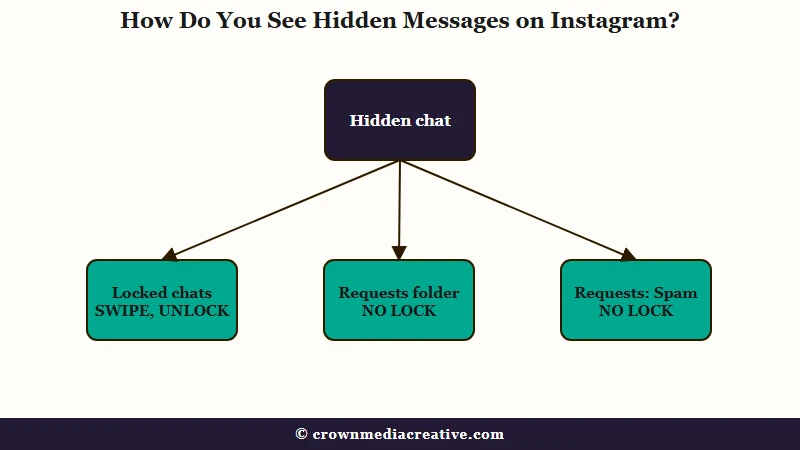
You see hidden messages on Instagram by swiping down from the top of your inbox, tapping Locked chats and unlocking with your face, fingerprint or passcode. Chats hidden by Restrict or by Instagram’s spam filter sit in Requests instead, with no lock on them.
To open the hidden folder:
- Tap Messages.
- Swipe down from the top of your inbox.
- Tap Locked chats in your list of chats.
- Unlock the folder the same way you unlock your phone.
My first stop when a chat seems to have vanished is Locked chats, since that folder stays invisible until you swipe. If the chat isn’t there, this table shows where else a missing chat can be.
| How the chat was hidden | Where it is now | What opens it |
|---|---|---|
| Lock and hide chat | Locked chats, shown when you swipe down in your inbox | Your face, fingerprint or passcode |
| You restricted the person | Message Requests | A tap, nothing more |
| Instagram filtered a request as spam | Spam, inside Requests | A tap, nothing more |
| Someone you don’t follow wrote first | Message Requests | Accept it to move it to your chats |
| You deleted it | Gone from your inbox | Nothing, and your data download leaves it out |
The Spam folder is the one older guides call Hidden Requests. Instagram’s spam help page says requests that may be offensive, contain spam or match your Hidden Words go to a separate Spam folder, and you get no notifications for them. On Android, the path is Messages, then Requests at the top right, then Spam.
Restricted chats land in Message Requests, and so do that person’s future messages, per Instagram’s Restrict page. Nothing locks Requests, so anyone holding your phone can open them.
How Do You Unhide a Chat on Instagram?
You unhide a locked Instagram chat by opening it from Locked chats, tapping the chat name, then Privacy & safety, and turning Lock and hide chat off. For a restricted chat, unrestrict the person from your settings.
Unlocking uses the same switch and the same face, fingerprint or passcode check.
To unrestrict someone, tap your profile picture, tap Menu at the top right, and below How others can interact with you tap Restricted. Tap Next, search for the person and tap Unrestrict.
Can You Hide Instagram Messages Without Deleting Them?
Yes. Lock and hide chat, Restrict and mute all keep your messages, and only the lock puts the chat behind your phone’s screen lock. Deleting removes a chat for you alone, while the other person keeps their copy.
For a chat that has to stay private on a borrowed phone, I would skip Restrict and use the lock. Restrict also hides that person’s new comments on your posts from everyone else, which is a heavy side effect for a privacy fix.
Before: You restrict a friend so your chat leaves the inbox. Someone borrowing your phone taps Requests, and the whole conversation is right there.
After: You lock the chat instead. It sits in Locked chats, and opening it takes the same check that unlocks your phone.
| Method | What it hides | What stays in view | How to undo it |
|---|---|---|---|
| Lock and hide chat | The chat, plus its text in notifications and search | Their copy of the chat | Switch it off in Privacy & safety |
| Restrict | The chat from your inbox, and your read status from them | The chat, unlocked, in Requests | Unrestrict them in settings |
| Mute | Notifications from that chat | The chat in your inbox | Turn Mute messages off |
| Vanish Mode | Messages, once someone leaves or turns it off | The chat, plus an alert on their side | Swipe up in the chat again |
| Delete chat | The whole chat, for you only | Their copy of the chat | None documented |
Mute fits a chat that won’t stop buzzing. Instagram’s mute page has you tap the person’s name at the top of the chat, tap Mute, then switch on Mute messages or Mute calls. Muting leaves the chat where it is, and a December 2025 Reddit post describes a muted group chat still sitting in the inbox.
For a busy group chat, Instagram’s group mute page says you stay in the conversation but get no notifications from it. On Android, you can mute messages, @mentions and calls separately. The mute guide covers the rest of the mute menu.
Vanish Mode messages disappear when someone leaves the chat or turns Vanish Mode off, and the chat itself stays in your inbox. Instagram’s Vanish Mode page says the feature may be unavailable in Japan and in Europe. If a chat turned purple and you aren’t sure why, the purple chat guide walks through Vanish Mode and the other causes.
Disappearing messages, Instagram’s timer-based option that is only available in certain locations, carry their own catch. Instagram’s disappearing messages page says a message that has disappeared can still be included in a report for up to 14 days.
Google’s October 10 AI answer also suggested moving a chat to General, a folder that exists only on business and creator accounts in the app, per Instagram’s inbox page. Moving a chat there turns its notifications off without locking anything.
Will Someone Know if You Hide Their Instagram Chat?
Instagram describes no alert to the other person when you lock or mute a chat. The lock applies to your account only, so the chat stays unlocked on their side, and Instagram’s mute page says it won’t let them know.
| What you do | What the other person can notice |
|---|---|
| Lock and hide chat | No alert described, and the chat stays unlocked for them |
| Mute | Nothing |
| Restrict | You stop showing as online or as having read their messages |
| Read receipts off | No Seen label when you read their messages |
| Vanish Mode | A notification when you message them in it |
Instagram’s Lock a chat page puts it plainly: “When a chat is locked, it will only lock and move to a hidden folder for your account. The chat won’t be locked for others in your conversation.”
Mute is the option I trust most to stay invisible, because Instagram’s mute page says outright, “Instagram won’t let them know you muted them.” Restrict is the one a close friend may spot, since your Seen label stops appearing on their messages.
If you only want to read without the Seen label, turn off read receipts for that one chat. Instagram’s read receipts page has you tap the chat name, then Privacy & safety, then the Read receipts switch, in the same menu that holds the lock. Instagram began testing that control in November 2023, per TechCrunch.
Are Locked Instagram Chats Encrypted?
Locked Instagram chats are not end-to-end encrypted. Instagram stopped supporting end-to-end encrypted messaging on May 8, 2026, and the lock only controls what shows on your phone’s screen, notifications and search.
Instagram’s encryption page now reads: “End-to-end encrypted messaging on Instagram is no longer supported as of May 8, 2026.” It points anyone who wants encrypted chats to WhatsApp.
Meta’s stated reason was low demand. A spokesperson told The Guardian in March 2026, “Very few people were opting in to end-to-end encrypted messaging in DMs.”
I treat a locked chat as private from the people around me and nothing more. These are the four gaps the lock leaves open:
- Anyone who knows your phone passcode. That code opens locked chats too, so the lock is only as private as the code.
- Someone logged into your account on another phone. The lock asks for the face or passcode of whatever phone the account is open on, so yours does nothing on theirs. Log them out of Instagram first.
- The other person’s copy. The chat stays unlocked on their side.
- A deleted and restarted chat. If you delete a locked chat and start a new conversation with the same accounts, the new chat won’t be locked.
Locking hides message content from search. If you also looked the person up, clear your search history to empty your recent searches, though the accounts Instagram suggests when you tap the search bar can still include them.
Quick Takeaways
- Lock and hide chat, in each chat’s Privacy & safety menu, hides a chat behind your face, fingerprint or passcode.
- The inbox shortcut reads Hide chat on iPhone and Lock chat on Android, and both lock the chat.
- Swipe down from the top of your inbox and tap Locked chats to see hidden chats again.
- A locked chat is not end-to-end encrypted, since Instagram dropped that option for DMs on May 8, 2026.
If other people pick up your phone, lock the chat. Mute is enough when you only want a chat to stop buzzing, and Restrict is the wrong tool for privacy because it parks the whole conversation in Requests with no lock.

