
Turn Off Screen Time on TikTok When the Limit Won’t Go Away
Turn Off Screen Time on TikTok When the Limit Won’t Go Away
Turn off screen time on TikTok under Time and well-being, then find what keeps the limit coming back when every switch is already off. See each fix.
- 1How Do You Turn Off Screen Time on TikTok?
- 2Why Does TikTok Have a Screen Time Limit You Never Set?
- Can TikTok Change the Age on Your Account?
- 3Can a Teen Turn Off TikTok’s 60-Minute Limit?
- 4Why Is Your TikTok Time Limit Still There After Unlinking Family Pairing?
- 5Is It TikTok’s Screen Time Limit or Your Phone’s?
- 6Why Does TikTok Say You Reached Your Daily Limit With Every Setting Off?
- What If TikTok’s Screen Time Page Says Something Went Wrong?
- 7Why Can’t You Set a TikTok Screen Time Limit Longer Than 2 Hours?
- 8Which Other TikTok Timers Look Like a Screen Time Limit?
- 9Quick Takeaways
The Short Answer: Open your profile, tap the menu, then Settings and privacy, Time and well-being and Screen time, and switch Daily screen time off. If the switch is already off and TikTok still stops you, the limit comes from somewhere else. Check for a parent’s Family Pairing link, your phone’s own screen time tools, a late-night Wind Down prompt for under-16s, or a glitch on TikTok’s side.
Here is how to turn off screen time on TikTok in the current app: the Daily screen time switch now sits under Time and well-being, a step older guides leave out. TikTok’s screen time page says the change is “reflected in both the app and web versions,” so you only do it once.
That fix assumes the limit is yours. When the switch is already off, or the Screen time page will not even open, flipping the same toggle again will not touch it.
TikTok’s default limit for teens is easy to get past, since a passcode prompt is all that stands in the way. A March 2023 internal TikTok study, described in California’s 2024 lawsuit, found the default prompts moved the average teen’s day on the app from roughly 108.7 to 107.1 minutes. TikTok disputes the October 2024 lawsuits from 13 states and Washington, D.C., and its spokesperson told NPR that Kentucky’s complaint cherry-picked misleading quotes and used outdated and out-of-context documents.
The limits a teen cannot type past are the ones a parent controls, through Family Pairing or the phone’s own settings. Each source has its own off switch, so I work out which one is stopping you before touching anything.
How Do You Turn Off Screen Time on TikTok?
You turn off screen time on TikTok in Settings and privacy, under Time and well-being, then Screen time, where you switch Daily screen time off.
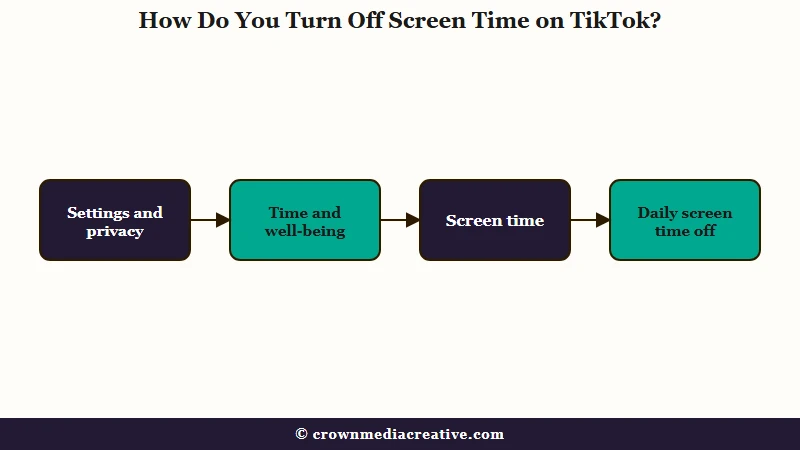
These are the steps in the app, taken from TikTok’s help page:
- Tap Profile at the bottom of the TikTok app.
- Tap the Menu button with three lines at the top, then Settings and privacy.
- Tap Time and well-being.
- Tap Screen time.
- Switch Daily screen time off.
The April 2025 copy of TikTok’s help page went from Settings and privacy straight to Screen time, and today’s version puts Time and well-being in between.
On a computer, click your profile picture on tiktok.com, then Settings, Screen time and Daily screen time, and switch it off there. When you hit a limit you set yourself, TikTok lets you close the app or “enter the on-screen passcode to return to it,” per the current help page.
I like that on-screen code, because a limit you set yourself no longer hides behind a number you could forget. Older versions had you create your own passcode, and California’s complaint describes teens entering “a passcode that they have previously created.” If a tutorial asks for a passcode you never made, it was written for that older design, so check today’s switch before following it.
If a limit still will not behave, match what you see to its cause:
| Symptom | Likely cause | Fix |
|---|---|---|
| A 1-hour limit you never set | The account is treated as 13 to 17 | Switch Daily screen time off |
| TikTok’s icon is dimmed | Your phone’s Screen Time or Digital Wellbeing | Change the limit in your phone’s settings |
| Limit prompt with every setting off | A glitch on TikTok’s side | Reset the setting on tiktok.com, update the app, report it |
| Screen time page says Something went wrong | The settings page failing in the app | Change the limit on tiktok.com |
| Limit will not go above 2 hours | The app’s preset list stops at 2 hours | Try a custom limit on tiktok.com, or switch the limit off |
| Limit still there after unlinking | A Family Pairing limit that has not cleared | Switch it off yourself, then wait two days and relink so the parent can remove it |
Why Does TikTok Have a Screen Time Limit You Never Set?
TikTok switches a one-hour daily limit on by default for every account it treats as 13 to 17, which is how a limit can appear that nobody chose. The fix is the same Screen time switch, unless a parent set the limit.
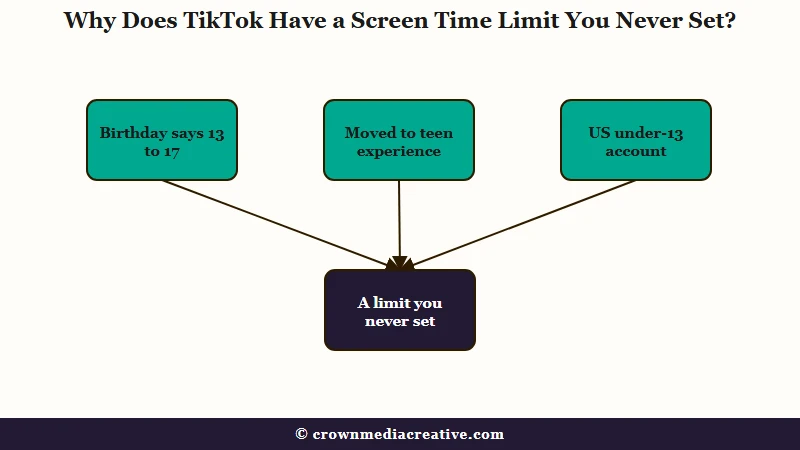
The default dates from March 2023, when TikTok announced that “every account belonging to a user below age 18” would get a 60-minute daily limit. It said it chose that number with experts from the Digital Wellness Lab at Boston Children’s Hospital.
Pew Research Center’s 2025 survey of 1,458 US teens aged 13 to 17 found 61% use TikTok every day.
A brand-new account is where this catches people out. A fresh test account in an October 2026 r/TikTok thread had the timer while the poster’s main account never did, and the first reply asked what age it was set to. When one account gets a timer the others never had, my first suspect is the birthday set on that account.
Can TikTok Change the Age on Your Account?
Yes, TikTok can move an account into a younger age experience after a moderator review, based on its own age prediction. Its age technology page says this happens when it predicts you are “likely under 18 years old and younger than the age you provided when signing up.”
The one-hour default belongs to the 13 to 17 experience, so an adult account placed there by mistake would get the limit too. TikTok’s age confirmation page lists three ways to prove you are 18 or older: a selfie with your ID, a small temporary credit card charge, or a facial age estimate from a live selfie.
In the US, accounts in TikTok’s under-13 experience get a 60-minute limit as well. Only a parent’s passcode adds 30 more minutes there, per the 2023 announcement.
Can a Teen Turn Off TikTok’s 60-Minute Limit?
A teen can turn off TikTok’s 60-minute limit with the normal Screen time switch, unless a parent set the limit through Family Pairing. A teen cannot loosen or switch off a limit a parent set, only tighten it.
TikTok’s screen time page says the setting can be turned “on and off at any time,” and its only note for ages 13 to 17 is that the setting starts switched on. Teens who switch it off and then spend more than 100 minutes on TikTok in a day get a prompt to set a limit again, per the 2023 announcement.
A Family Pairing limit works differently. TikTok’s Family Pairing page says teens “can always increase their own restrictions, but can’t reduce those set by you,” and the parent gets “a randomized passcode” to unlock extra time.
The same page says Restricted Mode and daily screen time limits “will prevent your teen from logging out or switching accounts on the TikTok app.” That can look like a locked TikTok account when the limit is doing it. My advice to a teen in that spot is the plain one: ask the parent to change the limit from their own phone.
Why Is Your TikTok Time Limit Still There After Unlinking Family Pairing?
A Family Pairing time limit can stay on a TikTok account after the accounts are unlinked. Switch it off in your own Screen time menu first, then give it two days before trying anything else.
In one r/TikTok thread from April 2026, someone who had paired their account with a friend’s turned Family Pairing off and still had the time limit the next day. A 2021 Psychology Today guide for parents said it takes “48 hours from when they click unlink before the parental control settings expire.” TikTok’s current Family Pairing page names no waiting period.
This is the sequence I use for a leftover limit:
- Open Settings and privacy, then Time and well-being, then Screen time, and switch Daily screen time off.
- If the switch will not move, wait two full days from the moment you unlinked.
- If the limit is still there, relink with the other account so the parent can switch the limit off in Family Pairing, then unlink again.
- If nothing changes, report it in the app under Settings and privacy, then Report a problem.
Family Pairing’s screen time limits have drawn complaints through 2026, including one from August 2026 calling them “very buggy lately.” Send a report with a screen recording if yours sticks.
Is It TikTok’s Screen Time Limit or Your Phone’s?
The screen that stops you tells you whose limit it is. TikTok’s own limit offers to close the app or take an on-screen passcode, while an iPhone or Android limit comes from the phone, where TikTok’s switch cannot reach it.
| Limit | What you see | Who turns it off, and where |
|---|---|---|
| TikTok daily screen time | A TikTok prompt to close the app or enter an on-screen passcode | You, in Settings and privacy, Time and well-being, Screen time |
| Family Pairing limit | A prompt that needs a passcode from the parent’s phone | The linked parent, in Family Pairing on their TikTok |
| Family Pairing Time Away | TikTok unavailable at set times, with an option to request more time | The linked parent, in Family Pairing on their TikTok |
| iPhone App Limits (iOS 26 and earlier) | An Apple Screen Time screen, which you can ignore by default | You or the parent with the Screen Time passcode, in Settings, Screen Time, App Limits |
| iPhone Time Allowances (iOS 27) | An Apple limit on a whole category such as Social Media | You or the parent with the Screen Time passcode, in Settings, Screen Time, Time Allowances |
| Android app timer | TikTok closes and its icon dims until midnight | You, in Settings, Digital Wellbeing, App timers |
On an iPhone, Apple’s Screen Time can limit TikTok from outside the app, and TikTok’s own switch has no say over it. Apple’s iOS 26 guide says “By default, Screen Time limits can be ignored once reached,” and apps blocked during Downtime “appear dimmed with an hourglass icon.”
In iOS 27, Apple’s current guide calls these limits Time Allowances and sets them by category. When an app has a linked website, “the Time Allowance applies to both,” so switching to the browser may not get you around it.
If a parent manages the iPhone through Family Sharing, Apple’s family page says the child’s Screen Time passcode is set on the parent’s own device.
Android’s Digital Wellbeing runs on a timer. When it runs out, “the app closes and its icon dims,” and timers “reset at midnight,” per Google’s help page. Delete the timer under App timers to use TikTok again before then.
If the TikTok icon itself is dimmed, I stop looking at TikTok’s settings, because its own limit lives inside the app and leaves the icon alone.
Why Does TikTok Say You Reached Your Daily Limit With Every Setting Off?
A daily-limit prompt that keeps firing with every screen time setting off points to a glitch on TikTok’s side, and resetting the setting from tiktok.com is the first fix to try.
On January 22, 2026, one r/TikTok poster got the prompt “every five seconds” with every setting off, and turning the settings on and back off did nothing. A reply in that thread says tapping return brought up “We’ll remind you in 1749463947394 hours.” Another thread posted the same day describes the same prompt with all limits off.
Settings changed on the website reach the app, which is why I go to the website first for this one. Work through it in this order:
- On a computer, sign in at tiktok.com, click your profile picture, then Settings, Screen time and Daily screen time.
- Switch Daily screen time on, pick any limit, then switch it off again.
- Update the TikTok app on your phone, then close it fully and reopen it.
- Report it in the app under Settings and privacy, then Report a problem.
Leave Android’s Clear data button alone while you troubleshoot, because it erases drafts on the phone, as our TikTok lagging guide explains.
A clear report gets further than an angry one. I attach a screen recording to every report like this, since a video of the prompt firing with the setting off is hard to wave away:
Vague: “screen time broken pls fix”
Specific: “Daily screen time is switched off under Time and well-being and on tiktok.com, but the daily limit prompt still appears every few minutes. iPhone, app updated today, started on [date]. Screen recording attached.”
What If TikTok’s Screen Time Page Says Something Went Wrong?
When TikTok’s Screen time page shows “Something went wrong,” change the limit from tiktok.com instead, because TikTok syncs that setting back to the app.
In a February 2026 thread, opening screen time showed “Something went wrong Try again later.” A March 2026 thread describes a black screen and a frozen app on the same page, while break reminders still opened.
If the website shows the same error, report it from the app with a screen recording. A setting you cannot reach from either place is TikTok’s to fix.
Why Can’t You Set a TikTok Screen Time Limit Longer Than 2 Hours?
TikTok’s preset limits stop at 2 hours, and its help page now mentions a custom limit only in the website steps, so tiktok.com is where to try a longer one.
California’s complaint describes the options as “ranging from after 40 minutes to 2 hours,” and a 2023 Metricool guide lists 40 minutes, 1 hour, 1 hour 30 minutes and 2 hours, plus a custom time.
The custom part has dropped out of TikTok’s app instructions. The April 2025 help page said “You can choose from several options or set a custom limit for each day,” while today’s version stops at “You can choose from several options.” Its website steps still say “set a custom limit each day.”
The poster in the February thread had once set 6 hours and could no longer go above 2. A parent in a July 2026 thread found a Family Pairing limit pushed down to 2 hours “with no option beyond that and no option for custom time.”
The 2-hour ceiling is the change that bothers me most, since a cap that low turns into a passcode chore for anyone who watches longer on purpose. If 2 hours is too short and you do not want the prompt at all, switch Daily screen time off instead of stretching it.
Which Other TikTok Timers Look Like a Screen Time Limit?
Wind Down for under-16s, sleep hours, break reminders and a parent’s Time Away schedule all interrupt TikTok without being the daily limit, and so does a fake cash pop-up.
- Wind Down: under-16s still on TikTok after 10 p.m. get a full-screen prompt, then a second, “harder to dismiss” prompt if they keep going, per TikTok’s March 2025 announcement. TikTok says most teens in its pilot countries chose to keep the reminder on, but it names no setting to turn it off. If you are 16 or older and still see it, the account is likely set or predicted as younger, so check the age section above.
- Sleep hours: at the bedtime you set, TikTok shows an in-app reminder to take a break and mutes push notifications. Switch Sleep hours off in the same Screen time menu to stop the reminder. Accounts aged 13 to 17 keep night-time notifications muted anyway, from 9 p.m. for ages 13 to 15 and 10 p.m. for 16 to 17, until 8 a.m.
- Break reminders: a prompt to take a break after a stretch of scrolling. TikTok’s April 2025 help page said to tap Edit reminders on that prompt to turn them off, and today’s page no longer mentions them.
- Time Away: a parent picks days and times when TikTok is unavailable, and the teen can send a request to keep using it.
- Screentime To Cash: a full-screen ad promising money for scrolling. Our Screentime To Cash guide covers how to make it stop.
If a full-screen prompt appears after 10 p.m. on an account under 16, I would bet on Wind Down rather than the daily limit. None of these timers uses the daily limit switch, so turning Daily screen time off leaves them running.
Quick Takeaways
- Switch Daily screen time off under Settings and privacy, then Time and well-being, then Screen time, or under Settings on tiktok.com.
- A limit you never set can come from an age of 13 to 17 on the account, a parent’s Family Pairing link, your phone’s own screen time tools, or a TikTok glitch.
- A dimmed TikTok icon means the limit comes from your phone, so change it in iPhone Screen Time or Android Digital Wellbeing.
- When the prompt fires with every setting off, reset the setting on tiktok.com, update the app and send TikTok a report with a screen recording.
- A full-screen prompt after 10 p.m. on an account under 16 is most likely Wind Down, which the Daily screen time switch does not turn off.

