
How to Schedule Facebook Posts From a Profile or Page
How to Schedule Facebook Posts From a Profile or Page
Facebook has opened desktop post scheduling to personal profiles. The rollout is staggered, so some users report the option appearing and then vanishing again.
- Summary
- 1Can You Schedule Posts From a Personal Facebook Profile?
- Which route applies to your account
- 2How to Schedule a Post From a Profile in Pro Mode
- 3How to Schedule Facebook Posts From Desktop
- 4Where to Find and Manage Your Scheduled Posts
- 5Why the Schedule Button Disappears
- 6What You Can and Cannot Edit After Scheduling
- 7Third-Party Schedulers and What They Can Reach
- 8What This Means If You Plan Content in Batches
- 9Frequently Asked Questions
- Can you schedule posts on a personal Facebook profile?
- Why can’t I schedule posts on Facebook?
- How far in advance can you schedule a Facebook post?
- Where do scheduled Facebook posts go?
- Why isn’t my Facebook scheduled post showing up?
- Can you edit a scheduled Facebook post?
- Do you need Meta Business Suite to schedule Facebook posts?
Summary
- Facebook’s built-in post scheduler works on a Page or on a profile switched to pro mode, not on an ordinary personal profile.
- Meta’s own help centre says that in-app scheduling feature is “only available on mobile devices”.
- The desktop route Meta documents is Meta Business Suite, and it is built around Pages.
- A post scheduled in Meta Business Suite can be edited later. Anything scheduled in the Facebook mobile app has to be deleted and recreated, on a Page as well as a profile.
If the schedule option has vanished from your Facebook profile, or it never appeared at all, the cause is usually the account type rather than a bug. Facebook’s own scheduler is scoped to Pages and to profiles running in pro mode, and Meta documents that feature as a mobile one.
This guide separates the three routes that actually exist, says which one your account qualifies for, and covers what you can still change after a post is queued.
Can You Schedule Posts From a Personal Facebook Profile?
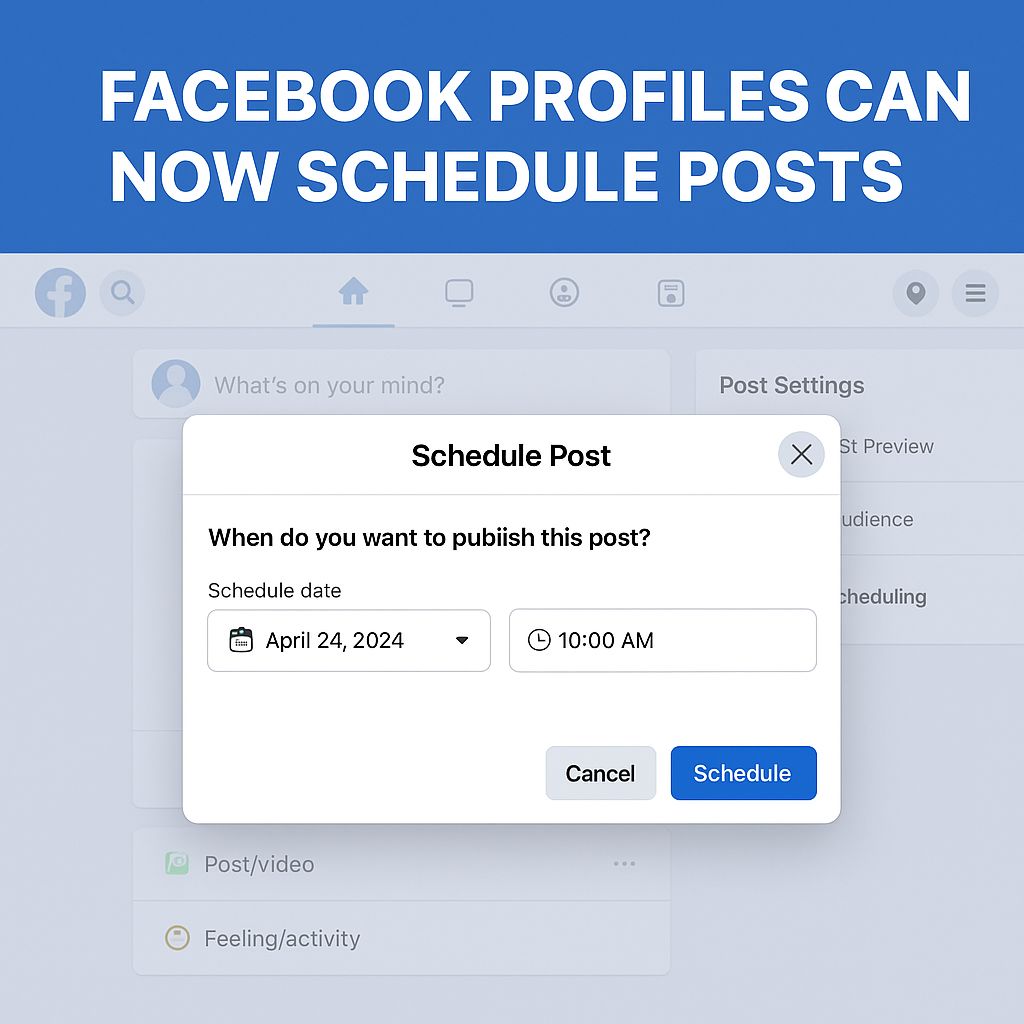
Not from a standard personal profile using Facebook’s own tools. Meta’s help centre scopes its scheduler to “a Page or a profile in pro mode”, the setting you switch on from your own profile, so a plain personal profile with it switched off is not covered.
Turning pro mode on is what puts the scheduling controls in your composer. Two people on identical phones will see different options depending on whether it is enabled.
The same document also states that the on-platform version of this feature “is only available on mobile devices”, which sits awkwardly beside the many guides promising desktop profile scheduling.
Which route applies to your account
- Personal profile, pro mode off: no built-in scheduling. Switch on pro mode or use a Page.
- Profile in pro mode: schedule in the Facebook app on mobile from the composer, then track what is queued under Manage posts.
- Facebook Page: schedule on desktop through Meta Business Suite, with the fullest set of controls.
How to Schedule a Post From a Profile in Pro Mode
Once pro mode is on, scheduling lives inside the normal composer rather than a separate tool. Meta’s documented steps run through Post settings, and the whole flow takes under a minute.
- At the top of your Feed, Page or profile, tap What’s on your mind?
- Create your post, adding text, a photo or a video.
- Tap Next to open Post settings.
- Under Scheduling options, choose Schedule for later instead of Publish now.
- Pick your date and time, or use the recommended times.
Meta describes those recommended slots as based on when your own followers are most active on Facebook, so they shift from account to account.
If Scheduling options does not appear after you tap Next, pro mode is almost certainly off, or you are on a build where the feature has not reached you yet.
How to Schedule Facebook Posts From Desktop
The desktop path Meta documents is Meta Business Suite, and it is built for Pages. You reach it from the left menu of the Page you want to post as, then create the post inside Business Suite rather than in the ordinary Facebook composer.
- Switch to the Page you want to use.
- From your Page, click Meta Business Suite in the left menu.
- Click Create post underneath your Page’s profile picture.
- Add your content, then next to Scheduling options click the Set date and time toggle.
- Set your date and time, then click Schedule.
Two limits are worth knowing before you plan a month of content. Meta states that you can schedule Page posts “to publish between 20 minutes and 29 days away”, and that all scheduling times follow your current time zone.
Business Suite also offers an Active times button, which Meta describes as recommended times based on when followers were most active on Facebook and Instagram over the previous seven days. Scheduling permissions extend to anyone with Facebook or task access on the Page, so a collaborator can queue posts without owning the account.
Where to Find and Manage Your Scheduled Posts
Scheduled posts do not sit in your drafts or your feed, which is why so many people assume the post failed. The location depends on which route you used.
- Profile or Page in the app: tap Manage posts on your Page or profile to see everything queued.
- Meta Business Suite on desktop: click Planner in the left menu, where posts appear on a calendar you can view by Week or Month.
Inside Planner, clicking a scheduled post and then Options gives you five actions: Edit post, Duplicate post, Reschedule post, Move to drafts, and Delete post. Business Suite remains the better home for anything you plan in bulk.
Why the Schedule Button Disappears
The complaint that the option showed up and then vanished comes up constantly, and there are a few ordinary explanations before you reach for a bug report.
- Pro mode was switched off, or was never on. This removes the composer controls immediately.
- You are on desktop, where Meta documents the in-app profile scheduler as unavailable.
- You switched between profile and Page mid-session, so the composer you are looking at belongs to the other identity.
- The rollout is uneven, and staged feature releases genuinely do appear and withdraw on individual accounts.
Checking pro mode first will resolve most cases in a few seconds, and it costs nothing to toggle.
What You Can and Cannot Edit After Scheduling
Whether you can edit a scheduled post depends on where you queued it rather than on your account type alone. Meta documents a different procedure for each surface.
In Meta Business Suite on desktop, Planner lets you edit, duplicate, reschedule or move a scheduled post back to drafts. Meta specifies that Edit post covers the text, media, link or location of the post.
In the Facebook app the instruction is blunter. To change a post after you have scheduled it, Meta says to tap Manage posts, then delete the post and recreate it, and that guidance covers Pages and pro mode profiles alike.
Meta documents Planner only as a Page tool, so a profile has no equivalent edit surface to fall back on. Proofread before you confirm if you batch a week of updates from a profile, because you will be rebuilding anything you get wrong.
Third-Party Schedulers and What They Can Reach
Most scheduling tools connect to Facebook Pages rather than personal profiles, which mirrors the same boundary Meta’s own products draw. If your content lives on a personal profile, converting to a Page or enabling pro mode usually comes before any tool will help.
Where a Page is involved, a third-party planner adds the things Business Suite does not do well, mainly cross-platform queues and approval steps. A tool such as Vista Social sits in that category, handling several networks from one calendar.
None of that changes the underlying permission model. A scheduler can only post where Facebook grants it access, so the account type question comes first regardless of which app you pay for.
What This Means If You Plan Content in Batches
The workable setup for most creators is a Page for anything scheduled and a profile for anything spontaneous. That keeps the 29-day window, the Planner calendar and the editing controls available, and it keeps the delete-and-rebuild routine off your plate as long as you queue in Business Suite.
If you would rather keep everything on one profile, pro mode is the switch that unlocks scheduling, with the trade-off that you queue on mobile and delete rather than edit. That is workable for short captions and painful for anything long.
Batching runs into a separate problem worth planning around, which is that organic reach is getting harder across the major platforms. A queue full of filler will not carry an account on its own.
Whether Meta extends profile scheduling to desktop, or reopens API access for profile posts, is still open. For now, plan around Pages if scheduling is central to how you build an audience.
Frequently Asked Questions
Can you schedule posts on a personal Facebook profile?
Not with Facebook’s own tools unless the profile is switched to pro mode. Meta scopes its scheduler to “a Page or a profile in pro mode”, and pro mode is a setting you switch on from your own profile.
Why can’t I schedule posts on Facebook?
The usual reason is that pro mode is off, or that you are trying it on desktop. Meta documents the in-app profile scheduler as available on mobile devices only, and the desktop route it publishes is Meta Business Suite for Pages.
How far in advance can you schedule a Facebook post?
For Pages, Meta states that you can schedule posts “to publish between 20 minutes and 29 days away”. All scheduling times follow your current time zone.
Where do scheduled Facebook posts go?
On a profile or Page in the app, they sit under Manage posts. In Meta Business Suite on desktop, they appear in Planner on a calendar you can view by week or month.
Why isn’t my Facebook scheduled post showing up?
Check Manage posts on the profile or Page, or Planner in Meta Business Suite, because scheduled posts do not appear in your feed or your drafts before they publish. If it is missing from both, the post was most likely never confirmed at the final Schedule step.
Can you edit a scheduled Facebook post?
It depends on where you scheduled it. In Meta Business Suite, Planner lets you edit, duplicate, reschedule or move the post to drafts. For anything scheduled in the Facebook app, on a Page or a pro mode profile, Meta’s instruction is to delete the post and recreate it.
Do you need Meta Business Suite to schedule Facebook posts?
Only for the desktop route. A Page or a pro mode profile can schedule inside the Facebook app itself, while Business Suite is what Meta documents for scheduling from a computer.

